
How to Compress Audio for Instagram Reels Without Losing Quality
Learn how to compress audio for Instagram Reels without killing clarity. Includes format, bitrate, and mobile-friendly workflow tips.
By AudioCompressor.in | Published 2025-01-20 | Updated 2025-01-20
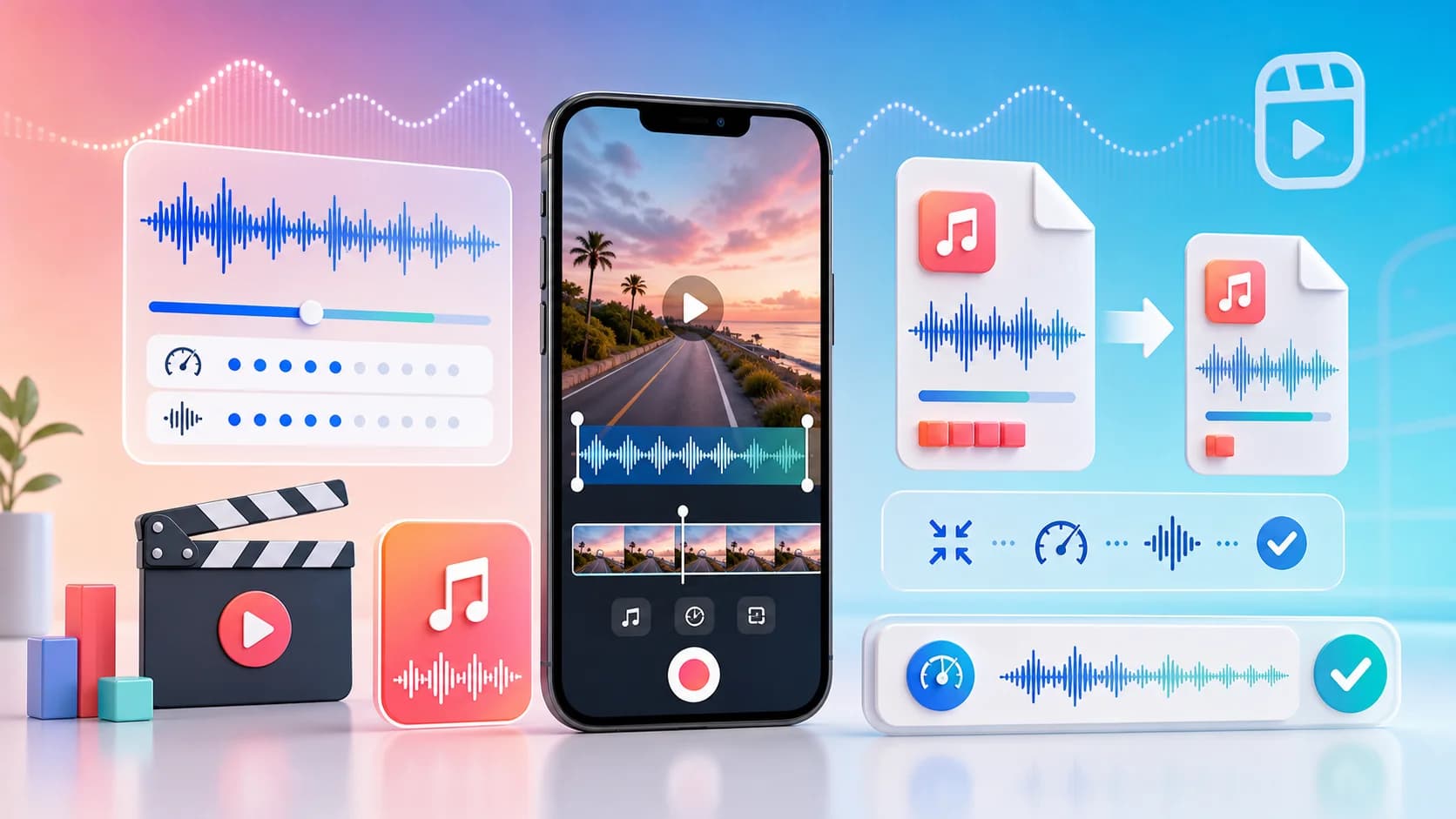
Why this article uses a visual explainer
The image is paired with the guide so readers can understand the core workflow faster and search engines can connect the image topic with the surrounding page intent.
This is especially helpful for format comparisons, file-size reduction tutorials, and quality-preservation guides where a strong visual summary adds context before the detailed steps begin.
If you want your Reel to feel polished, audio matters as much as visuals. But large files can slow exports, uploads, and collaboration. The right move is to compress audio for Instagram with controlled settings that keep speech clear and music punchy.
This guide explains how to compress audio for Instagram quickly without throwing away quality.
Why Compression Matters for Reels
Instagram reprocesses uploaded media. If your source is too large or poorly optimized, you may get inconsistent final quality. A good pre-compression workflow gives you more control and fewer surprises.
Compression helps you:
- Upload faster on mobile networks.
- Reduce project transfer time between devices.
- Keep consistent audio quality in repeated posting workflows.
Best Formats for Instagram Audio
For most creators, MP3 and M4A are practical choices:
- M4A: Better quality at lower bitrates.
- MP3: Excellent compatibility and editing support.
Use M4A when you want maximum efficiency, and MP3 when your editing stack is MP3-heavy.
You can prepare both versions quickly on audio compressor online.
Recommended Bitrate Settings
Start here and adjust only if needed:
- Voiceover only: 64-96 kbps
- Voice + light music: 96-128 kbps
- Music-first reels: 128-192 kbps
Do not jump directly to very low bitrates. Reduce in small steps and listen after each export.
Step-by-Step Compression Workflow
- Export or collect your source audio.
- Upload to free audio compressor.
- Select M4A or MP3 output.
- Set moderate compression first.
- Compress and download.
- Preview at phone speaker volume and earphones.
- Re-export only if needed.
This workflow is fast enough for daily publishing and strong enough for client work.
Preserve Clarity: Voice Is Priority
Most Reel audio quality complaints happen because voice loses articulation. Protect these frequencies by avoiding over-compression. If consonants like “s,” “t,” and “k” become dull, raise quality one step.
For spoken reels, clean intelligibility beats extreme size reduction every time.
Keep Music Clean Without Huge Files
Music intros and drops are sensitive to compression artifacts. If your reel is beat-driven:
- Keep bitrate slightly higher.
- Avoid repeated compressions.
- Always compress from the best source version.
A single controlled compression pass is better than multiple aggressive passes.
Mobile Testing Checklist
Before posting:
- Listen on phone speaker.
- Listen on earphones.
- Check background noise and vocal clarity.
- Confirm no pumping or metallic artifacts.
- Verify upload speed and final playback after posting.
This check takes two minutes and prevents weak uploads.
Common Mistakes Creators Make
- Compressing after audio is already heavily compressed.
- Choosing WAV for social posting when MP3/M4A is enough.
- Ignoring real-device playback checks.
- Prioritizing tiny size over listener experience.
Your goal is not the smallest file possible. Your goal is the best sounding file that uploads reliably.
Final Practical Recommendation
For most reels, start with M4A at moderate quality, then adjust based on content type. Keep MP3 as fallback for compatibility-heavy workflows. Use reduce audio file size when upload limits are strict, and compare output side by side.
For deeper quality decisions, read How to Compress Audio Without Losing Quality next.
Creator Workflow Template
If you publish frequently, use a repeatable template:
- Edit source audio to remove dead air and harsh peaks.
- Export master from your editor.
- Compress master for Instagram delivery.
- Keep delivery file under practical size for quick upload.
- Store both master and delivery versions.
This gives you a clean revision path. If a client asks for a tweak, you can return to the master instead of re-compressing a compressed file.
Audio Quality Benchmarks for Reels
Use these listening checks to decide if output is ready:
- Voice remains clear at low phone volume.
- Music does not turn metallic on high notes.
- Kick and bass remain defined enough for social playback.
- No pumping artifacts in transitions.
If one of these fails, increase quality one step and test again.
Fast Troubleshooting
- Upload fails: reduce bitrate slightly and retry.
- Audio sounds dull: increase quality and keep same format.
- Voice feels thin: avoid aggressive compression and re-export from clean source.
- Team asks for broader compatibility: provide MP3 fallback.
These small fixes solve most Reel audio issues quickly.
Final Posting Tip
Before final publish, export once more only if necessary, not by habit. A deliberate final pass from the master source protects quality and keeps your Reel audio dependable across devices.
Creators who follow this process consistently usually see fewer upload retries, cleaner vocals after platform processing, and faster turnaround when campaign timelines get tight.