
How to Reduce Audio File Size Without Losing Quality (2025 Guide)
Learn how to reduce audio file size without wrecking clarity. Step-by-step settings for MP3, WAV, and M4A on mobile or desktop.
By AudioCompressor.in | Published 2025-01-15 | Updated 2025-01-15
Why this article uses a visual explainer
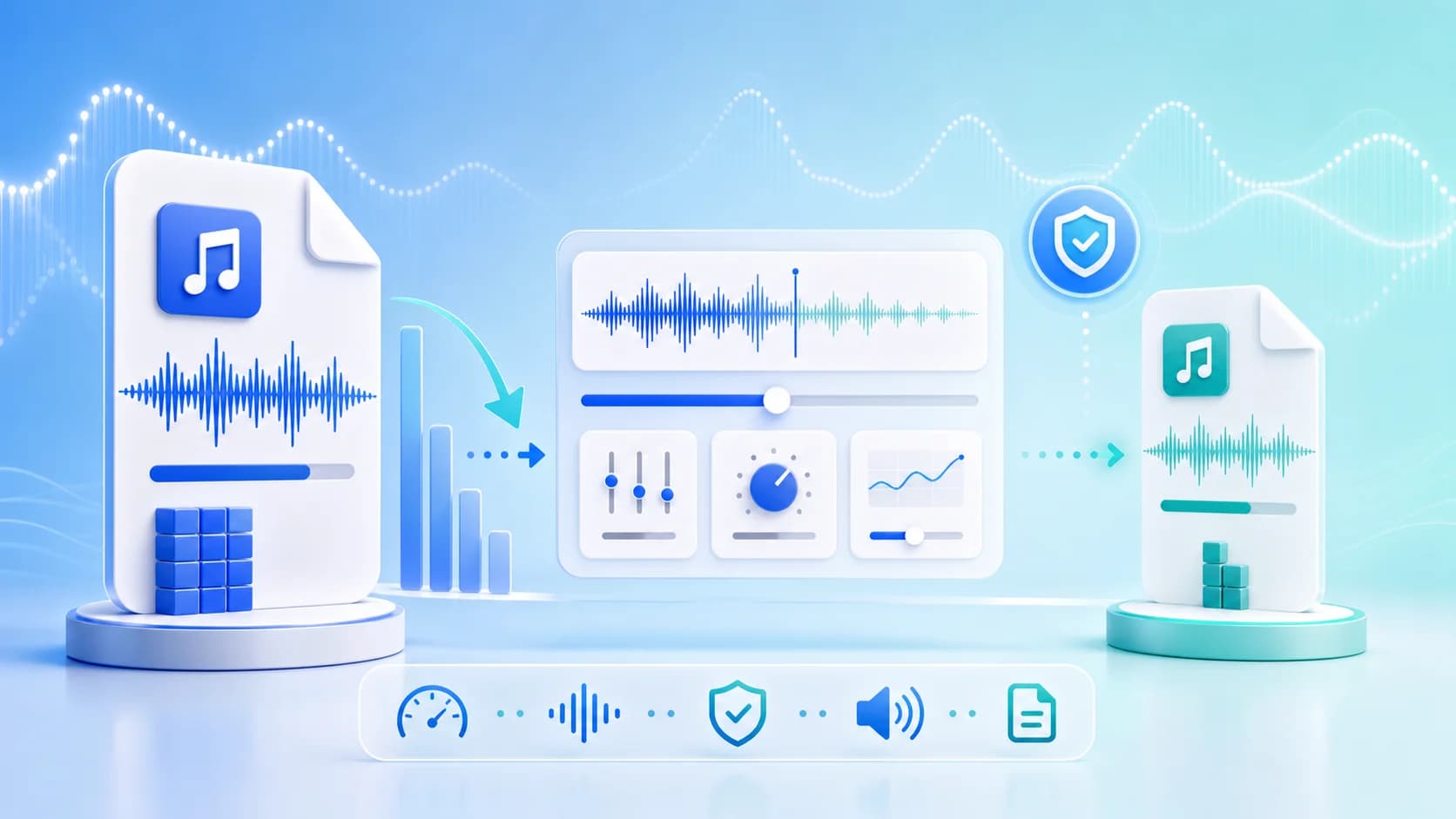
The image is paired with the guide so readers can understand the core workflow faster and search engines can connect the image topic with the surrounding page intent.
This is especially helpful for format comparisons, file-size reduction tutorials, and quality-preservation guides where a strong visual summary adds context before the detailed steps begin.
Reducing audio file size without breaking clarity is one of the most common tasks for creators, students, teachers, marketers, and support teams. If your files are too heavy, uploads fail, messages bounce, and social platforms recompress your audio in unpredictable ways. The good news is simple: you can reduce audio file size in a controlled way by using the right format and bitrate settings.
In this guide, you will learn a practical system to reduce audio file size step by step. You do not need expensive desktop tools or technical audio engineering knowledge. You just need a consistent workflow and a few rules.
Start with the free audio compressor tool when you are ready to test your own files.
Why You Should Reduce Audio File Size
Large files create friction everywhere. On mobile networks, a 25MB voice clip can take several minutes to send. In email, attachments may fail due to account or organization limits. On social platforms, large files are often recompressed automatically, which can create a worse result than manual compression.
Smaller files solve three real problems:
- Faster sharing over WhatsApp, email, and cloud links.
- Lower storage use across devices and team folders.
- Better publishing reliability on social and CMS uploads.
When you reduce audio file size intentionally, you keep more control over quality than when platforms recompress your file after upload.
Method 1: Pick the Right Output Format
Format choice usually matters more than people expect. A WAV export can be 8-10 times larger than an MP3 or M4A version of the same spoken content.
- MP3 is still the most universal format. It works almost everywhere and is ideal for compatibility.
- M4A (AAC) often produces better quality than MP3 at similar bitrates. Great for mobile-first use.
- OGG can be efficient for web workflows.
- WAV is useful for editing masters, but usually not for final sharing.
If you are unsure, start with M4A for quality efficiency or MP3 for compatibility. You can compare both quickly using our audio compressor online page.
Method 2: Lower Bitrate Carefully
Bitrate controls how much data is stored per second of audio. Lower bitrate means smaller files, but too low can add artifacts.
Here is a practical starting range:
- Spoken voice: 48-96 kbps
- Podcasts with music beds: 96-128 kbps
- Music previews: 128-192 kbps
- High-detail music exports: 192-256 kbps
You do not need perfection on the first try. Run two versions, listen on phone speakers and earphones, and choose the smallest file that still sounds clean.
Method 3: Convert Stereo to Mono for Voice
Many voice recordings are captured in stereo even when they do not need it. For interviews, lectures, voice notes, and explainer narration, mono can reduce size significantly with little perceived loss.
If your audience listens mostly on mobile speakers, mono often works very well. Keep stereo when music width matters.
Method 4: Trim Silence and Dead Sections
A surprising amount of size reduction comes from edits, not codecs. Remove long intros, outros, pauses, and accidental dead air before compression. Even small cuts can save noticeable space on long clips.
This is especially useful for podcasts, webinar snippets, and class recordings where setup chatter adds unnecessary minutes.
Method 5: Use a Browser-Based Compression Workflow
A browser workflow is useful because it is fast and repeatable:
- Upload your file.
- Select output format.
- Adjust compression level.
- Compress and preview.
- Download the optimized version.
You can run this flow on reduce audio file size, MP3 compressor, or M4A compressor pages based on your target format.
Recommended Settings by Use Case
WhatsApp Voice Notes
Use M4A or MP3, with medium compression. Aim for clarity over music detail. Most listeners use mobile speakers, so practical intelligibility matters more than studio fidelity.
Instagram Reels Voiceovers
Use M4A or MP3 with moderate bitrate. Keep consonants and vocal brightness clear. If needed, test two outputs and compare after upload.
Email Attachments
Use more aggressive compression only when you must hit strict size limits. Always keep one higher-quality archive copy locally.
Learning and Internal Team Audio
For lecture captures and team explainers, mono + medium bitrate often gives the best size-to-clarity ratio.
Common Mistakes to Avoid
- Compressing already heavily compressed files repeatedly.
- Dropping bitrate too low too quickly.
- Keeping WAV for casual sharing when MP3/M4A is enough.
- Not checking output quality on the actual device your audience uses.
- Forgetting to rename outputs clearly with format and bitrate notes.
A clean workflow prevents these errors and saves time every week.
Quality-Check Checklist Before You Share
Use this mini checklist:
- Is the file size clearly lower than the original?
- Are voices still understandable at normal volume?
- Do background sounds or music feel acceptable?
- Does the file open correctly on mobile?
- Can it be sent through your target channel without failure?
If all five checks pass, your file is ready.
Final Workflow You Can Reuse Daily
When you need to reduce audio file size fast, this repeatable system works:
- Choose MP3 or M4A for distribution.
- Set medium quality first.
- Preview on phone and earphones.
- Lower quality one step only if needed.
- Save the smallest acceptable version.
This balanced approach avoids both extremes: huge files that are hard to send and over-compressed files that sound rough.
If you want a direct start, open the homepage compressor and run one test file now. Then check MP3 vs M4A comparison to pick your default output for future projects.
Advanced Tips for Better Results
If you compress audio every week, these advanced habits will improve consistency:
Keep Channel-Specific Presets
Create simple presets for your common outputs, such as WhatsApp voice updates, Instagram drafts, and client review files. You do not need complex automation. Even a notebook with "Voice update = M4A medium, Music preview = MP3 high" reduces trial-and-error.
Normalize Before Compression
If one recording is too quiet and another is too loud, listeners turn volume up and down constantly. A light normalization pass before compression can improve experience and let you use safer bitrate ranges.
Maintain a Delivery Archive
Store final files in a structured folder with clear names. Include format and quality notes in the filename so you can quickly reuse settings. This saves time when clients ask for "same quality as last week."
Test on Slow Networks
If your audience often relies on mobile data, test uploads on constrained network conditions once. You will quickly understand which settings keep transfer smooth without harming clarity.
Decide a Team Default
When teams collaborate, inconsistent exports create confusion. Set one default format and one fallback format. Example: M4A default, MP3 fallback. This removes repeated decision overhead.
Practical Closing Note
There is no single perfect compression setting for every audio type. But there is a perfect process for your workflow: start from a clean source, choose format by destination, reduce gradually, and validate on real devices. Follow this method and your files stay shareable, clean, and efficient.